Approved Stamp
A bold rectangular “APPROVED” stamp with a signature line.
What you can customize
- Edit individual text layers and fonts.
- Change the border, ink color and spacing.
- Export a transparent PNG for documents or SVG for vector workflows.
Preview wording is sample content. Replace names, dates and numbers before using the design.
Design an “Approved” stamp
Approval stamps speed up paperwork. This bold rectangular design uses a heavy display font and a green ink to read clearly on printed pages, with an optional signature or initials line beneath. Adjust the wear effect to taste for that inked-by-hand feel.
A practical example
For an internal draft workflow, pair APPROVED with the reviewer’s initials and an actual approval date. Remove the signature placeholder if it is unused. The image communicates a workflow label; it does not independently prove that approval occurred.
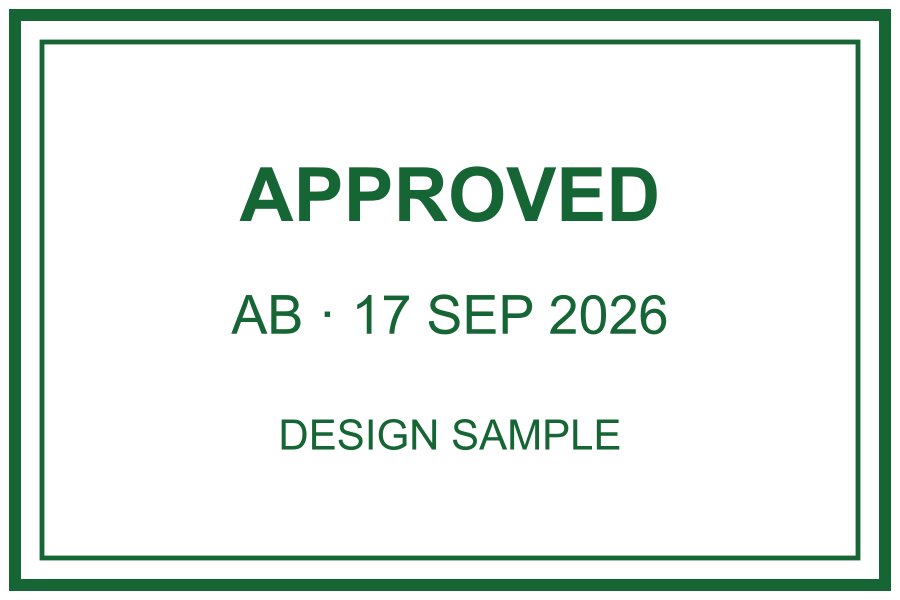
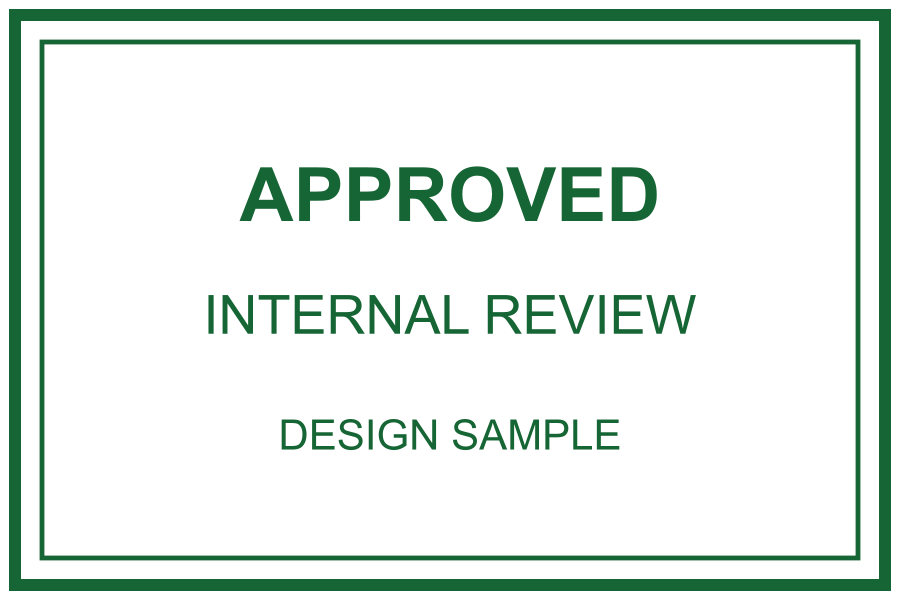
Approval marks with and without a date
Use an approval mark after your internal review is complete. A date and reviewer initials can help readers understand the label, but the image itself does not prove an approval occurred. Keep the underlying review record separately.
Fictional examples. Opening one replaces your current design; download your work first.
Connect the approval to a specific revision
- Identify the exact file and revision being reviewed before opening the dated example. A label on revision 02 should not be copied automatically to revision 03.
- Replace the fictional initials with the reviewer identifier used in your own process, or remove that line if the reviewer is recorded elsewhere.
- Enter the actual decision date and choose wording that matches the decision. A draft awaiting changes should not carry an unconditional APPROVED label.
- Save a separate approved copy and record its revision, reviewer and decision in the review log. Export a fresh image if any of those visible details change.
An approval date is not a receipt date
For a fictional example, a draft received on 17 September and reviewed on 19 September uses 19 September as the approval date. Keep the earlier arrival date in the intake record. If the content is later revised, return it to your review process instead of treating the old stamped image as a new decision. A PNG carries only the text you exported; it has no connection to a review system.
Place the decision beside the revision information
Reserve a review box where the revision number and any conditions remain visible. Avoid placing the mark across a signature field or over the changes being approved. Before distributing the copy, reopen it and compare the displayed revision with the review log. Use the undated example only when the document or log already makes the date and reviewer unambiguous.