Fix a Blurry Stamp PNG Export
A PNG stores a fixed grid of pixels. Enlarging that grid cannot restore missing detail. First open the downloaded file itself and compare it with the version in your document; this tells you whether the issue starts in the design or in the application receiving it.
Use the original export
Download the file directly from Stampzio. Avoid screenshots of the editor, images copied from a messaging preview and repeated conversions through JPEG. These can reduce resolution or introduce a solid background. Keep Transparent background checked if the stamp needs to sit over a page.
Choose enough pixels
For a circular 300-unit canvas, Standard (1×) produces 300 × 300 pixels, High (3×) produces 900 × 900, and Print (10×) produces 3000 × 3000. Other shapes have different canvas proportions. The setting changes pixel dimensions; it does not guarantee a physical print size or particular DPI metadata.
Calculate a target for printing
At an illustrative target of 300 pixels per inch, a 40 mm-wide stamp needs about 472 pixels: 40 ÷ 25.4 × 300. A 900-pixel export has enough pixels for that target, provided the artwork and logo are themselves clear. Your supplier may require a different target. Set the intended width in the receiving application.
Improve the design before increasing resolution
If small letters overlap or the logo is already fuzzy, a larger export will preserve those problems more clearly. Shorten crowded curved text, enlarge important lettering, reduce simulated wear and start with a sharper logo. SVG keeps vector text and lines scalable, but an embedded bitmap still has finite detail.
Compare at the intended size
A high-resolution PNG may look huge when opened at one pixel per screen pixel. Resize it proportionally in the document, inspect the final PDF and make a small print test if needed. If the original is sharp but the document is not, check image compression and whether the file was enlarged.
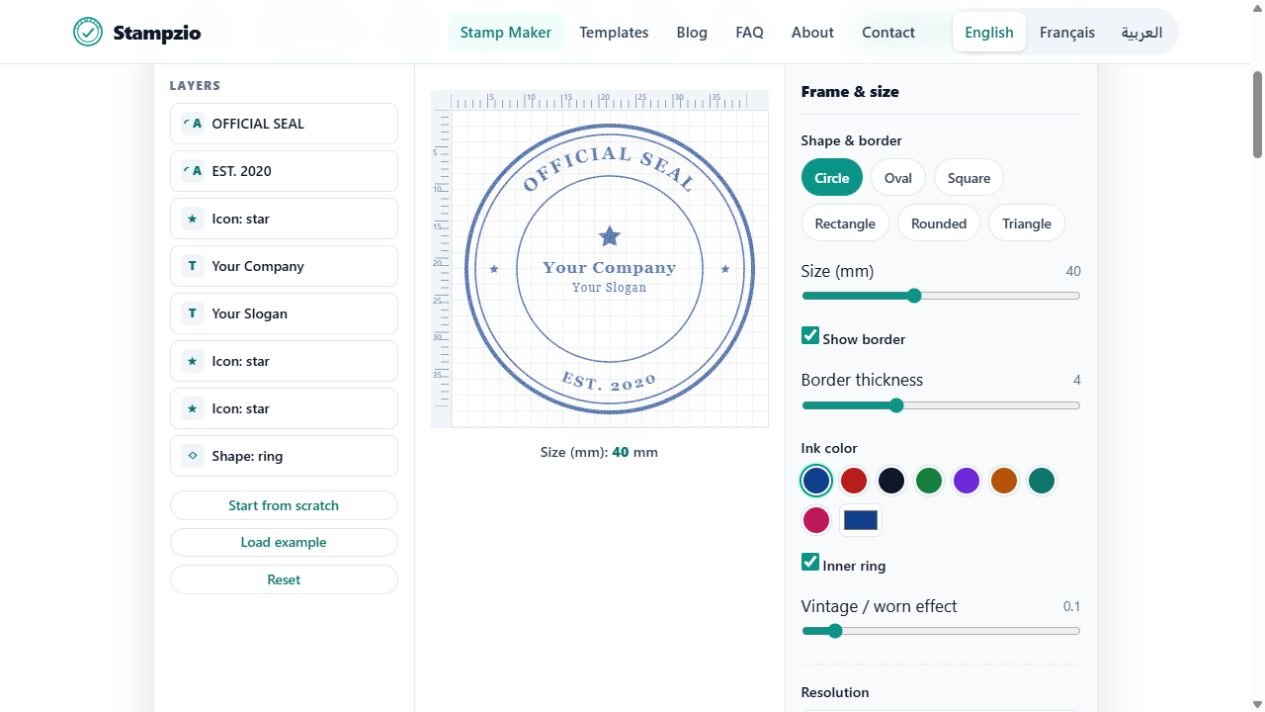
Example exports — fictional sample, not an authorized seal: PNG · SVG.