Teacher Feedback Stamp
Choose a useful feedback prompt, compare two editable examples and check readability in an exercise book.
What you can customize
- Edit individual text layers and fonts.
- Change the border, ink color and spacing.
- Export a transparent PNG for documents or SVG for vector workflows.
Preview wording is sample content. Replace names, dates and numbers before using the design.
A teacher feedback stamp is most useful when it tells a learner what to do next. Replace a general “Good job” with one short action, then add a handwritten detail beside the mark. These examples are feedback prompts, not a grading scale.
Two messages with different jobs
Fictional examples. Opening one replaces your current design; download your work first.
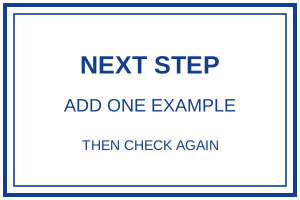
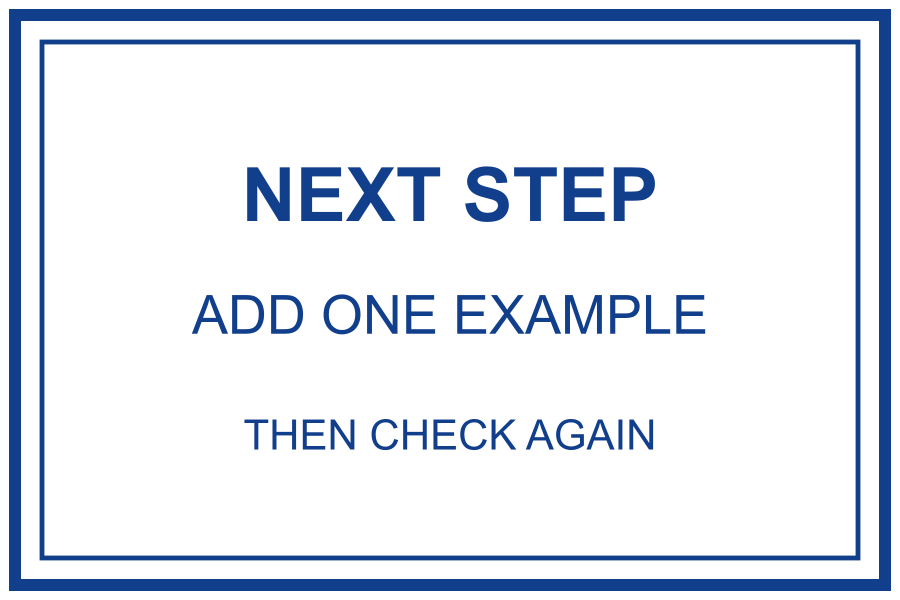
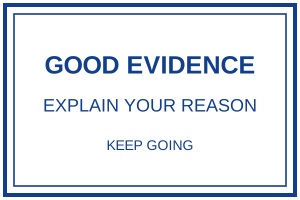
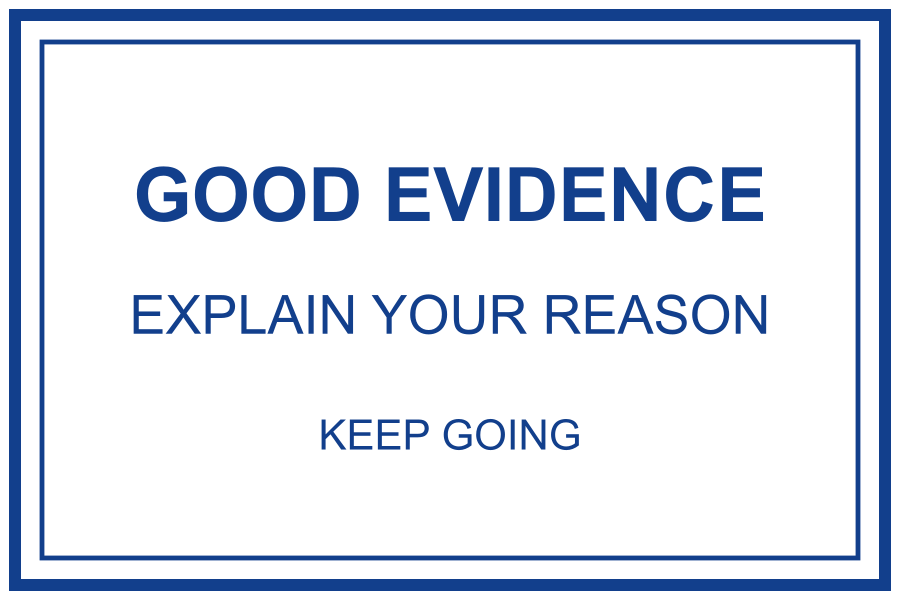
Use “Add one example” when a response needs supporting detail. Use “Explain your reason” when the learner has selected evidence but has not connected it to the answer. Mark the relevant sentence so the instruction has a clear target.
Keep feedback specific
- For a calculation: “SHOW YOUR STEPS”. Leave room for a handwritten reference to the problem.
- For a paragraph: “ADD ONE EXAMPLE”. Avoid stacking several unrelated instructions.
- For a revised answer: “CHECKED AGAIN”. Record the date separately if your classroom process needs it.
Fit the exercise book
The editable examples use a rectangular 3:2 canvas. At 45 mm wide, the image is 30 mm high. Measure the available margin first; do not shrink it into a narrow space until the smaller words become unreadable. Remove a line or place the mark below the work instead.
- Open an example and select its text layer.
- Replace the action with wording your learners understand.
- Download PNG, insert it at the intended width and inspect the smallest line.
- For a physical stamp, show the manufacturer a clean SVG and agree on size and minimum lettering.
Try the size guide before ordering. A paper layout check does not establish how ink will reproduce on an exercise book.